FlyNex Release Notes
Here you will find all the information about the current and previous versions of the FlyNex platform. We continuously document which new features have been added, which improvements have been implemented, and which changes are relevant to existing workflows.
The release notes help you understand platform developments, identify potential impacts on your processes early on, and make targeted use of new features. Each version includes a clear changelog so you can quickly see what has changed and when the updates became available.

FlyNex Release Update – Version 3.5.20261002 (02.10.2026)
1. New “Analysis” section
The previous “AI Analysis” and “Image Analysis” sections have been combined into a new “Analysis” section. It brings together the features and benefits of both sections
Where:
In existing and newly created projects, go to:
[Object XY] > [Project XY] > Analysis
What’s new:
The “Analysis” section has a redesigned interface with two areas: “Analysis” and “Summary”.
In Analysis, you’ll find the familiar image analysis tools, along with a new filter bar that lets you filter uploaded images by their current status.
The new file structure is available under File System. It lets you select images from individual folders or all images in a project.
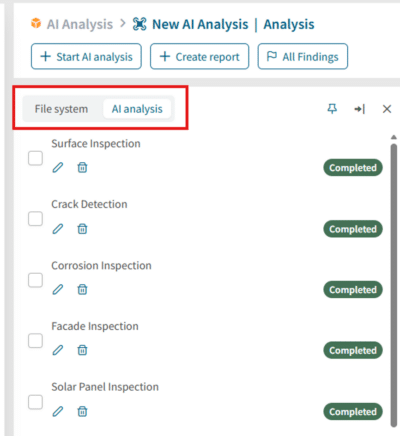
Next to the file system, the AI Analyses tab contains both new and existing AI analyses. You can select one or more analyses and review their results.
Reviewing findings
Findings added manually and those detected by AI are displayed in dedicated finding cards. The familiar actions are also available on collapsed cards: you can edit a finding or view it directly on the image.
AI-detected findings also display the confidence score and buttons to mark the finding as Correct or Incorrect. By default, an AI-detected finding is marked as Correct.
The Summary provides a clear overview of the results for the selected images or AI analysis. In addition to the processing status, it shows the key information for your selection. The Processing Status and Severity Distribution charts, along with the Findings by Type table, give you a quick overview of analysis progress and results. A new Rotating Bounding Boxes tool is also available to mark findings more precisely.
Benefits:
Image analysis and AI analysis are now combined in one redesigned section.
Get a faster overview with the new results summary
2. Analysis configuration
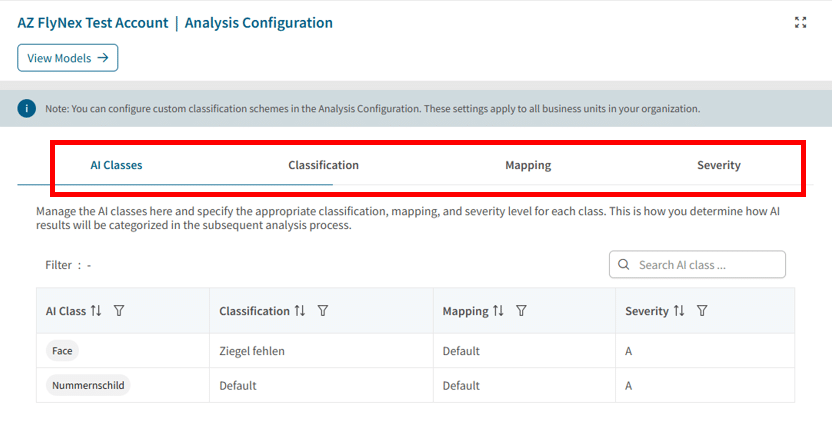
The previous “Classification”, “Mapping”, “Severity”, and “AI Classes” areas in Settings have been merged into one “Analysis Configuration” section.
Where:
New “Analysis” section
What’s new:
The individual configuration areas can now be accessed via tabs.
Benefits:
Redesigned UI/UX
All related analysis settings at a glance
3. Flight logbook: new “Flight Logbook Reviewer”
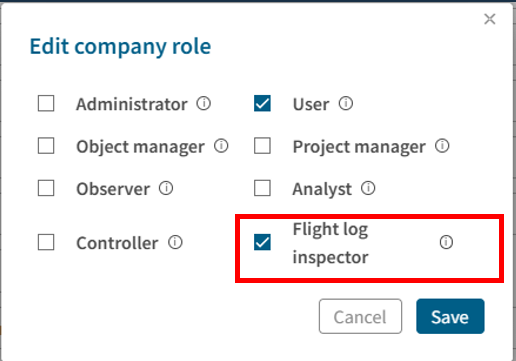
The new “Flight Logbook Reviewer” role allows users to view and review the company flight logbook. It is based on the basic permissions of the existing User role and is available across all domains.
Where:
Edit company role
What’s new:
The role provides targeted access to the company flight logbook without granting additional administrative rights.
Benefits:
Targeted access to the company flight logbook
No additional administrative rights required
More granular and transparent permission management
Can be used and assigned across domains
4. Company flight logbook: quick filters and planned flights
The company flight logbook now provides new time filters and a more complete overview of planned flight activities.
Where:
Company flight logbook
What’s new:
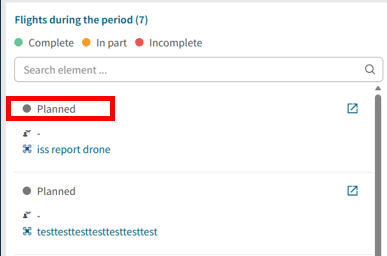
The new quick filters “Yesterday”, “Last 3 Days”, and “Last 7 Days” make it easier to narrow down relevant flights. Planned flights without an existing flight log are also displayed and sorted by recency. A tooltip explains the “Limit to map section” function.
Benefits:
Planned flights are visible even without an existing flight log
More complete overview of flight activities
Relevant flights can be filtered more quickly
The most recent entries are displayed at the top
Tooltip makes the map filter easier to use
The filtering function for employee names has been improved.
Where:
All PrimeNG tables
What’s new:
Employee names are now displayed in alphabetical order and can be searched directly.
Benefits:
Improved searchability of results
6. Object layers in the right-hand panel
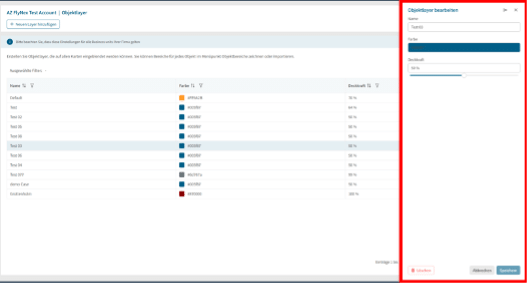
The management of object layers in Settings has been redesigned.
Where:
Settings > Object layers
What’s new:
Object layers can now only be created, edited, and deleted via the right-hand panel. This function is available to administrators.
Benefits:
Consistent interaction pattern across the application
Centralized and transparent management
Clearer interface structure
7. Mapping: place markers and export data
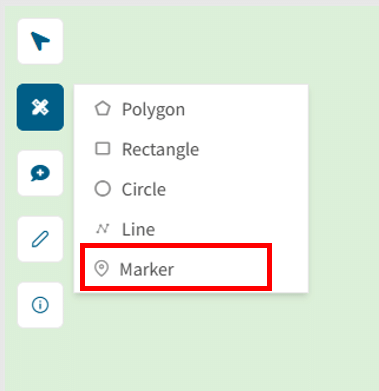
You can now place individually colored point markers on the map.
Where:
Mapping > Toolbar
What’s new:
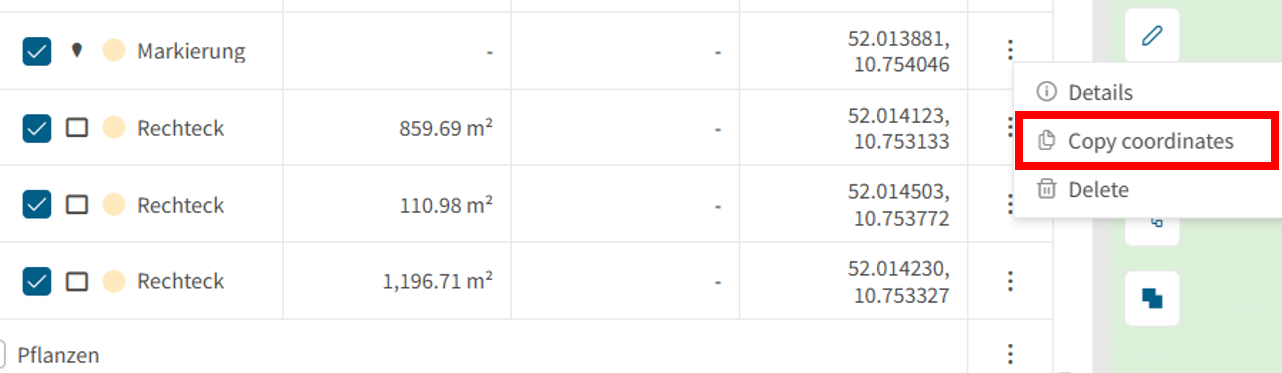
Coordinates are displayed directly in the table and can be copied. In addition to KML, CSV export is now also available. Distance and area totals are calculated dynamically based on the marked elements.
Benefits:
Mark locations precisely
Reuse coordinates quickly
Export and analyze data flexibly